
Ultra - Migrating Learning Activities from Learn Course
Learning activities in your Learn course cannot be copied to your Ultra course. In most cases, there is an image that you click to launch the activity. It may look like this image.

Due to accessibility, the activity must be created as a link in Ultra and the thumbnail is no longer used. To add this activity to your Ultra course, you must create a link to the activity. The URL can be found in the HTML code of the item in your Learn course.
To find the URL in your Learn course and create the link in your Ultra course, follow these steps:
-
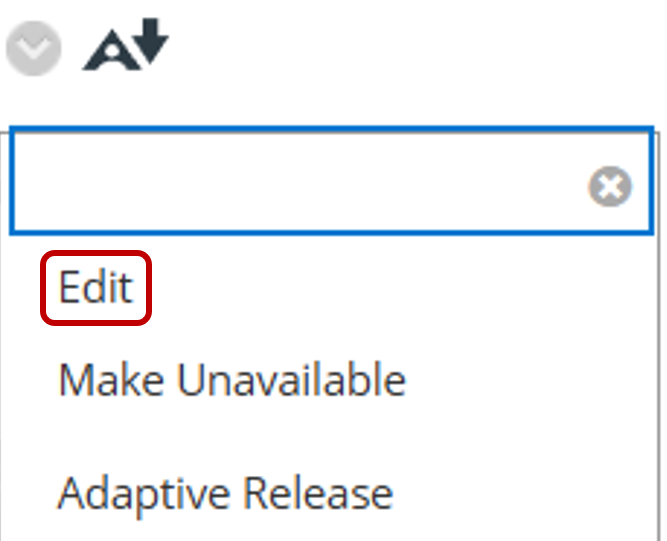
Locate the item in your Learn course and click more options.

-
Select "Edit" from the list.
-
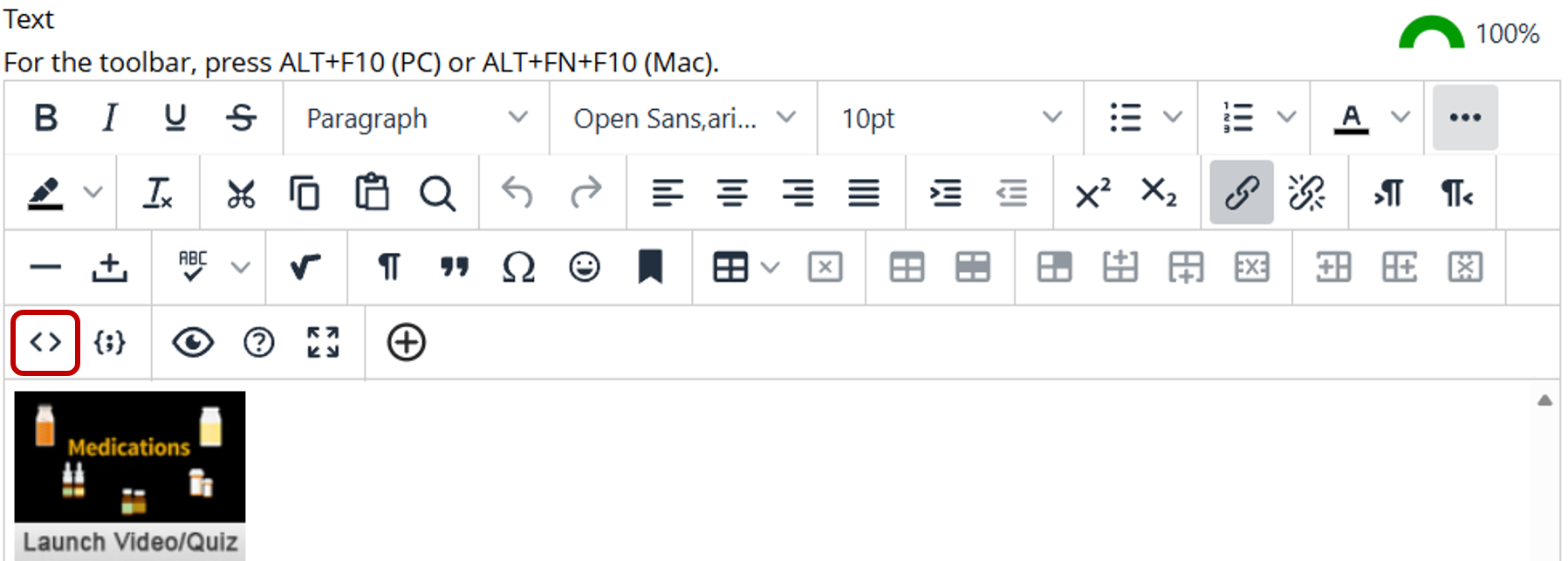
Select the Source Code option to see the HTML code (Note: you may need to click on the three dotes on the right to expand the menu).
-
Copy the URL after "href=" beginning with https://courses.cscc.edu... (Do not include the quotation marks).

-
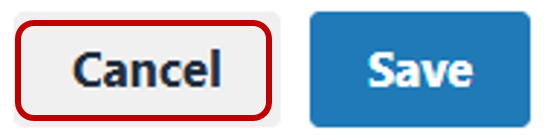
Click "Cancel" in the lower right corner to exit the Source Code editor.
-
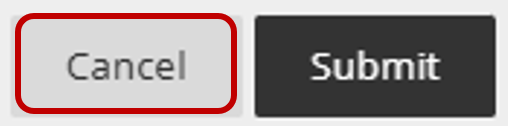
Click "Cancel" in the lower right to exit the editor.
-
Go to your Ultra course, locate the week or unit to add the activity, and click the plus (+) sign.
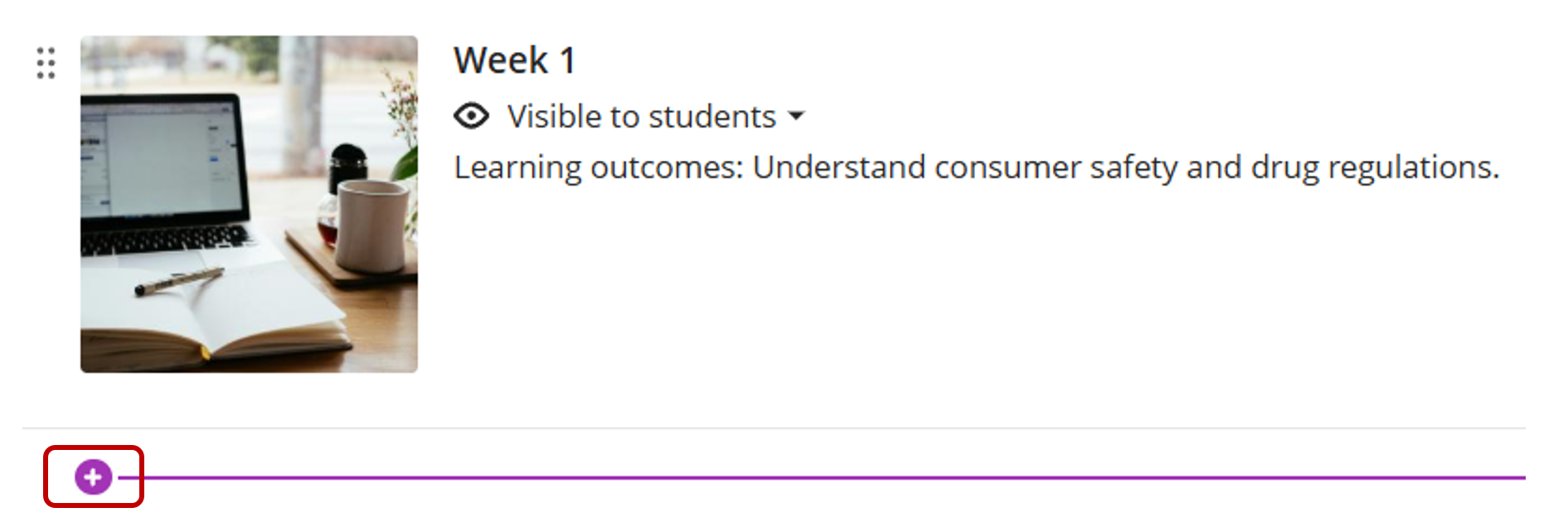
-
Click "Create"
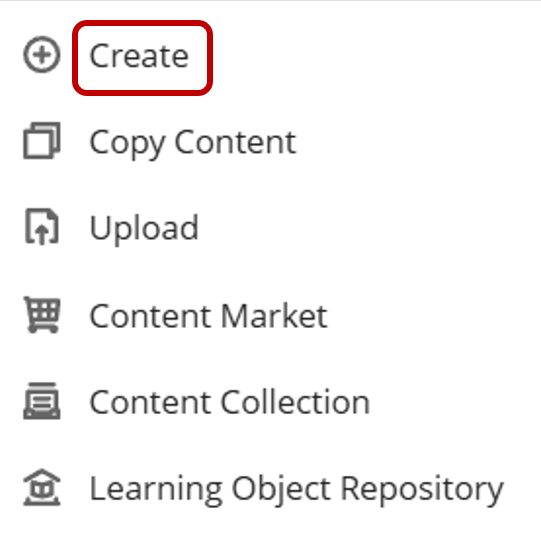
-
Click "Link"
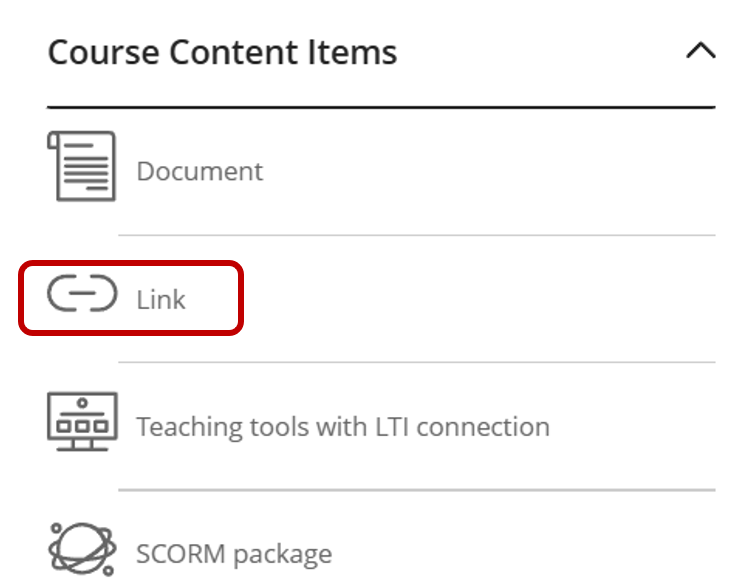
-
Type the Display name and past the link from the Learn course to the "Link URL"
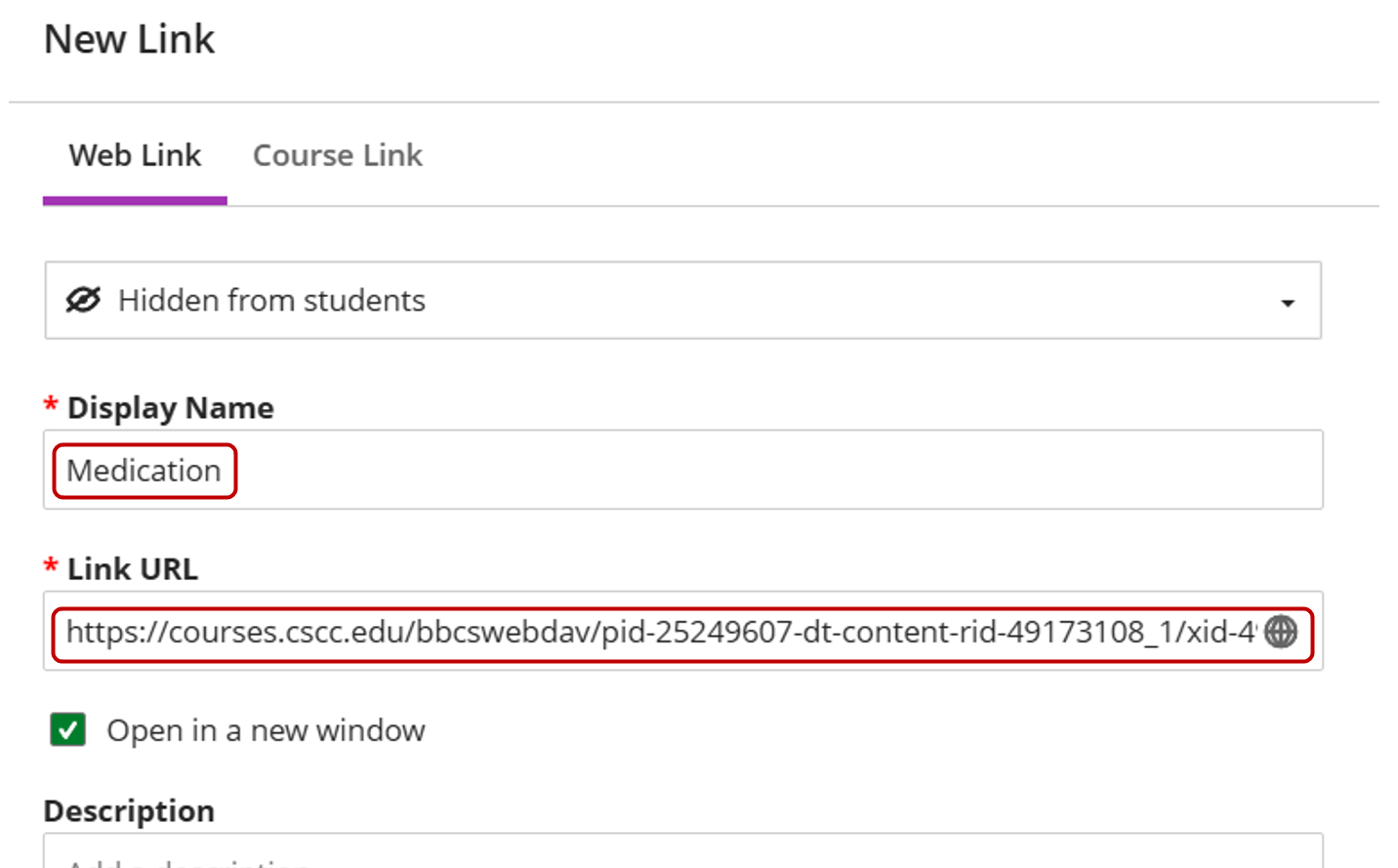
-
Click "Save" in the lower right corner

-
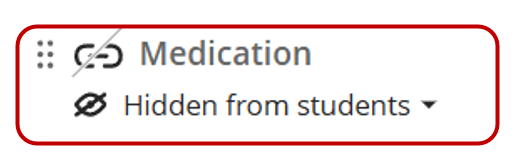
Now the link has been added to your Ultra course. Test that the link goes to the activity by clicking on it. If you have selected the wrong link from your Learn course, go back through these steps and verify that you have selected the URL from "href=" not the "img src="
If you have any questions, contact the FAC by emailing teaching@cscc.edu.