
Ultra - How to Embed Kaltura Videos inside a Module or a Document
- Open your Ultra course and navigate to the content area where you want the video to appear.
- Click the + icon.
- Select Add Content, then choose Insert Content.
- From the dropdown menu, select Content Market.
- Click Kaltura Media and locate the video you want to embed.
- Hover over the video, then click the gear (Embed Settings) icon on the right.
- Adjust the embed settings as follows:
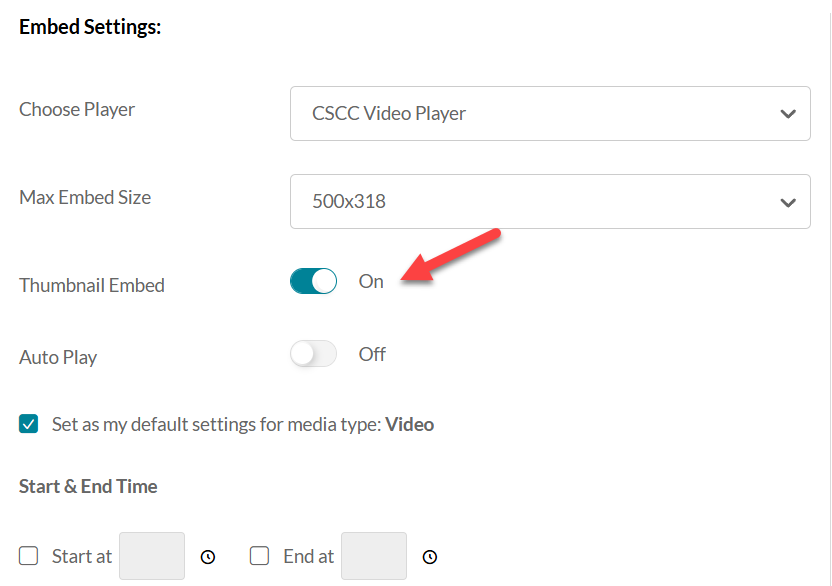
- Click Embed.
- When the Insert Content Market Item window appears, edit the Display Name to the title you want students to see.
- Click Insert.
- Click Save to finalize and publish the embedded video in your content area.