
Downloading the Gradebook in Ultra
Downloading the Gradebook
You can download the full Gradebook or select columns from your Blackboard Ultra course. When you download the Gradebook, it can be saved as a comma-separated value (.csv) file or a Microsoft Excel (.xls) file, which can be opened in spreadsheet software.
Download the Full Gradebook
-
Navigate to the Gradebook in your Blackboard Ultra course.
-
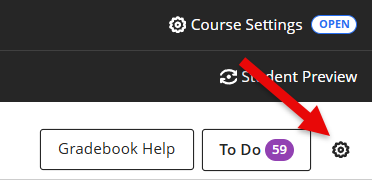
In the Gradebook, click the gear icon in the top-right corner.
-
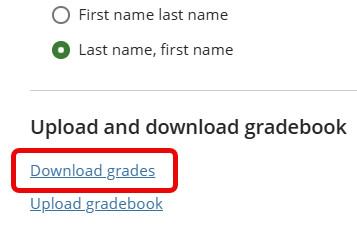
In the Gradebook Settings side panel that appears, click Download grades.
-
In the Download Grades side panel that appears, select Full Gradebook and check the Select All Items box to ensure that all Gradebook columns are downloaded.

-
Scroll down in the Download Grades side panel to select your preferred file type and download location, then click Download.

- The spreadsheet file will then be downloaded to your computer's default Downloads location.
Note: The file name will always begin with "gc_" and include the full ID of the course.
Download Specific Columns
Follow the steps above until Step 3. Instead of choosing "Select All Items" in Step 3, use the check boxes to select the specific Gradebook columns you want to download. Scroll up and down to see all the column options. Once you have selected the desired columns, proceed with Steps 4 and 5 above.

Note: The file name will always begin with "gc_" and include the full ID of the course.